Renew Your Standard Service
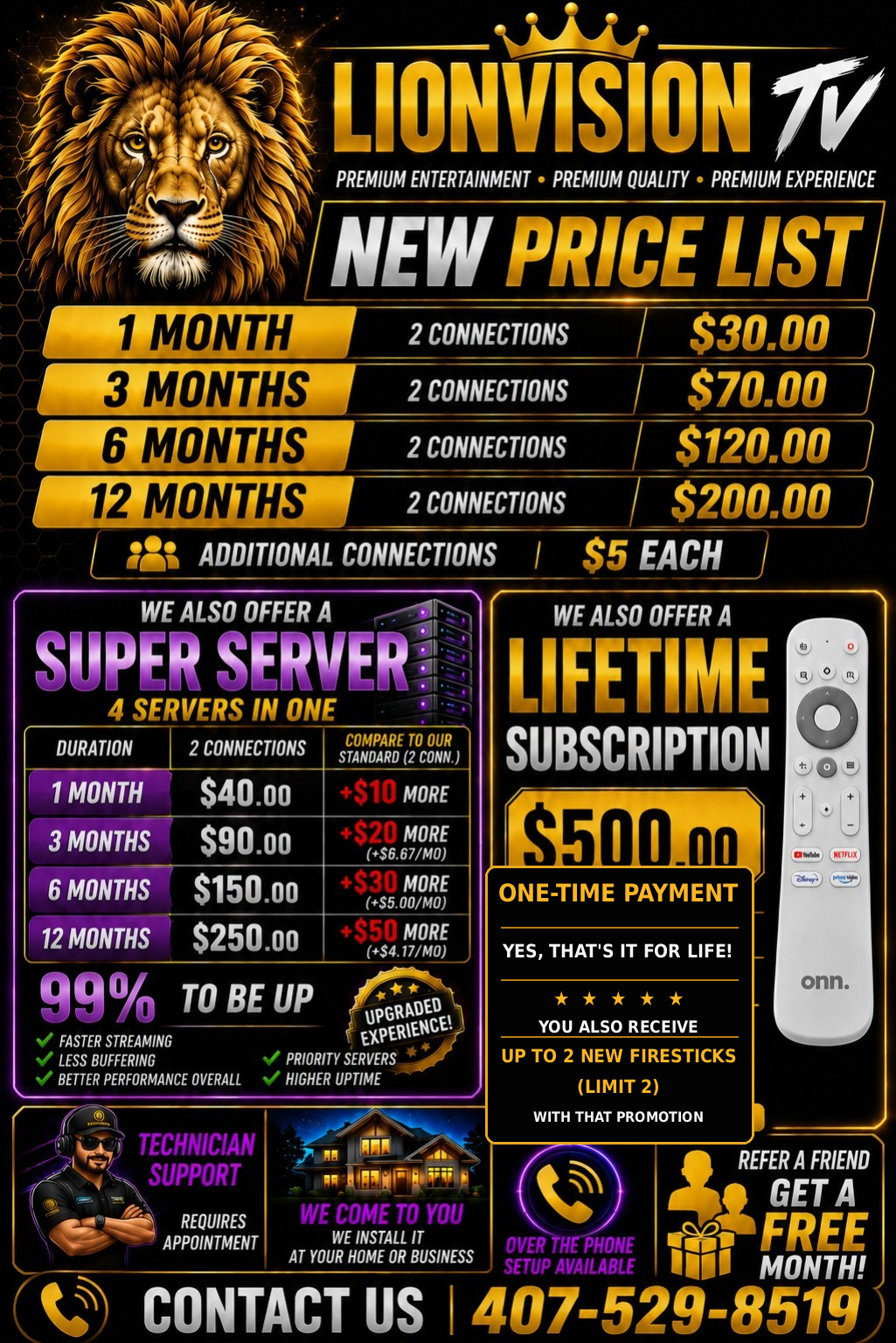
Two connections included.
1 Month2 connections$30
3 Months2 connections$70
6 Months2 connections$120
12 Months2 connections$200
Additional connections: $5 each.
Getting the newest LionVision TV version…

Important Saturday Information
PAY ATTENTION: LionVision TV live customer service is closed on Saturdays. No live agent is available on Saturday.
Everything must be completed through this website: new-customer setup, payments, renewals, expiration questions, troubleshooting, and purchasing a new device.
A live agent will be back on duty Sunday at 1:00 p.m. Eastern.
WELCOME TO LIONVISION TV
Choose one option before entering the full website.
LIONVISION TVSEE MORE. LIVE MORE.
⚙ HOW IT WORKS
Tap any step to go directly where you need to go.
Purchase an ONN or Fire Stick, choose quantity, pickup/delivery/shipping, and see your total instantly.
🛒 Purchase New Device →If you currently have a device, press the button below.
If You Already Have a Device,Choose your device first: ONN Box / Stick, Fire TV Stick, or Android Phone.
Tap to choose your Device →Use the installation guide to complete the app install.
Tap to open Installation →Tap the price or package you want.
Tap to open Plans →Once you show proof of payment, you will receive your username and your password and which server or playlist to go into.
Tap for Plans & Payment →PURCHASE
ONN / FIRE STICK
When you purchase a new device, in-home technician setup is FREE within 10 miles. Phone setup assistance is also always free. A separate delivery charge may apply if doorstep delivery is selected.
The $20 service price is a special offer available when purchasing a new device. After the promotional month ends, service returns to the regular monthly price. Each additional device is $45.
Your order total is $65. Payment must be made before you can send payment confirmation.
Watch each video, complete the instructions on your TV, then check off the step to continue. Your progress is saved so you can pick up where you left off.
Video 5 is optional: only update your playlist if you are having trouble.
Only do this if you are having trouble. This step is not required otherwise.
The video could not load. Check your connection, then select Retry video.
Watch this only if Google Play Protect blocks installation. This is an edited example originally recorded with Inspirational Streams; the warning and buttons on your device may differ. Verify the app download with your provider before choosing to continue.
Video could not start. Check your connection and tap Touch to play again.
Follow the instructions on your TV before marking this step complete.
You have completed the four setup videos. Video 5 is available whenever you need to troubleshoot your playlist.
You can skip installation and go directly to login.
INSTALLATION
⭐ CUSTOMIZE YOUR EXPERIENCE (OPTIONAL)Choose a team, character, service team, or religion picture to customize how your LionVision TV home screen will look.
To customize your experience, you will need the Downloader app on your Fire Stick or ONN device so you can download the LionVision website.
This puts the LionVision website/support shortcut on your TV so you can make payments, renew, troubleshoot, and customize your experience.
Use Downloader to put the LionVision website on your TV for payments, renewals, support, and customization.
STEP 3
Follow the steps below.
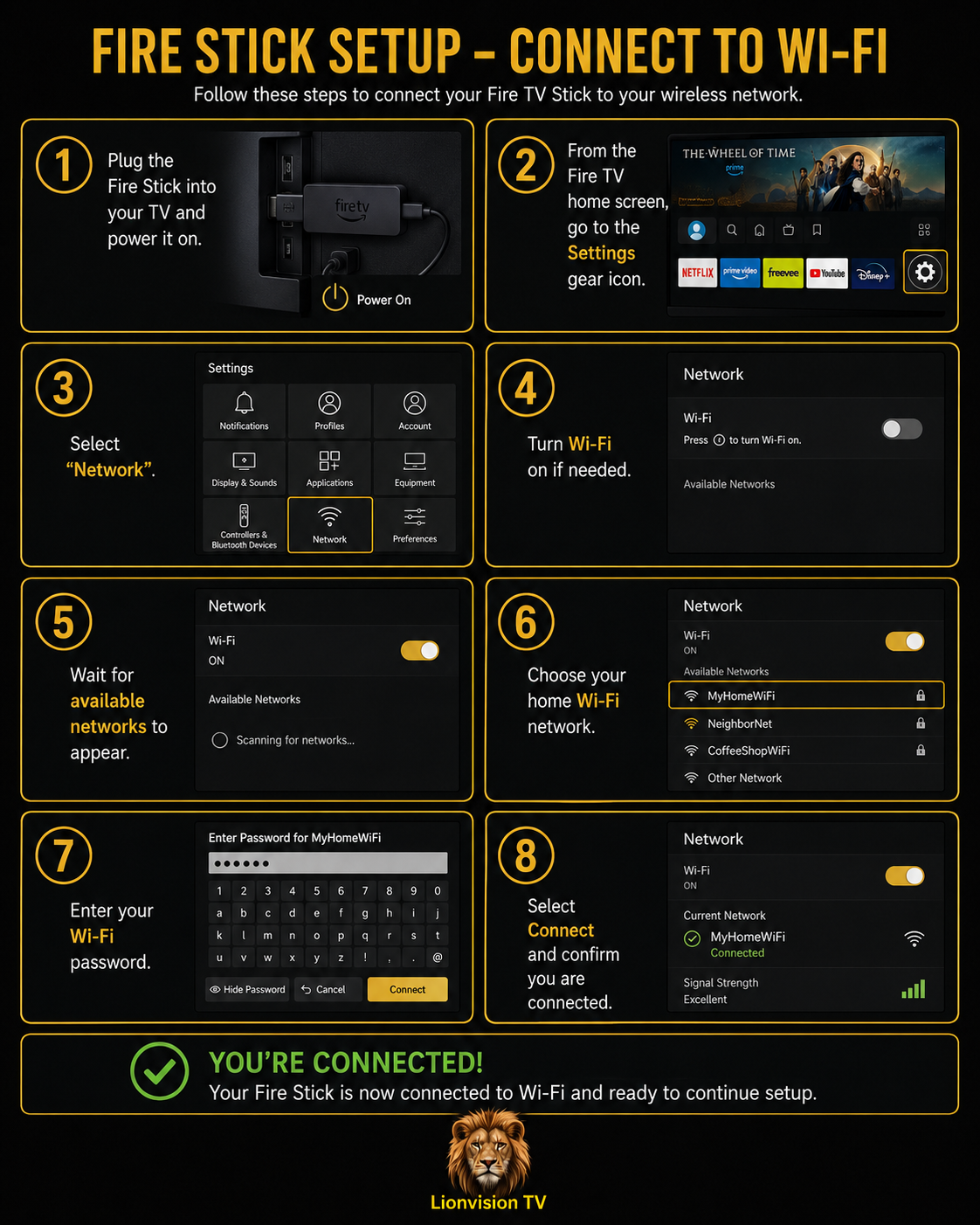
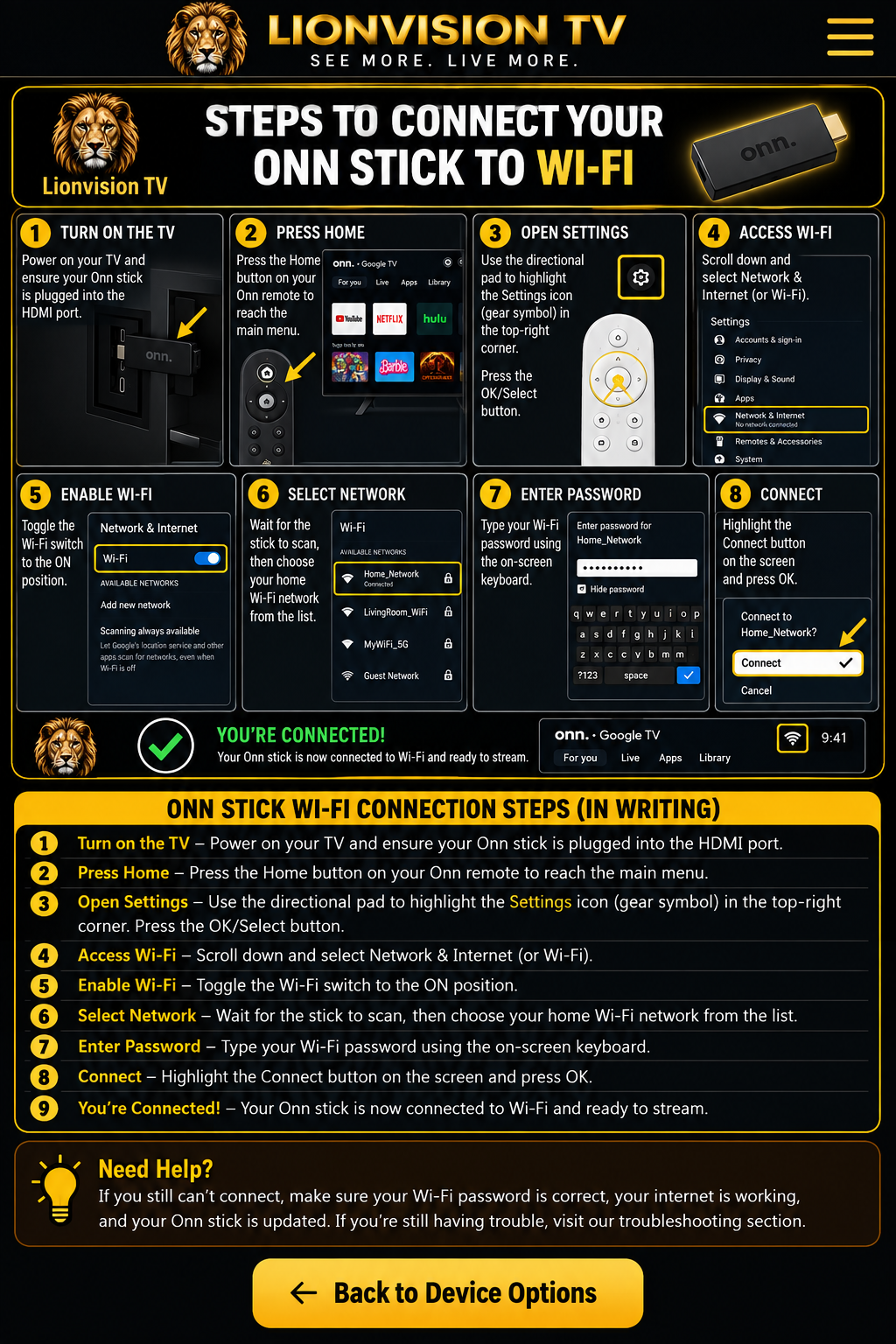
Connect to Wi-Fi, then install LionVision TV with Downloader.
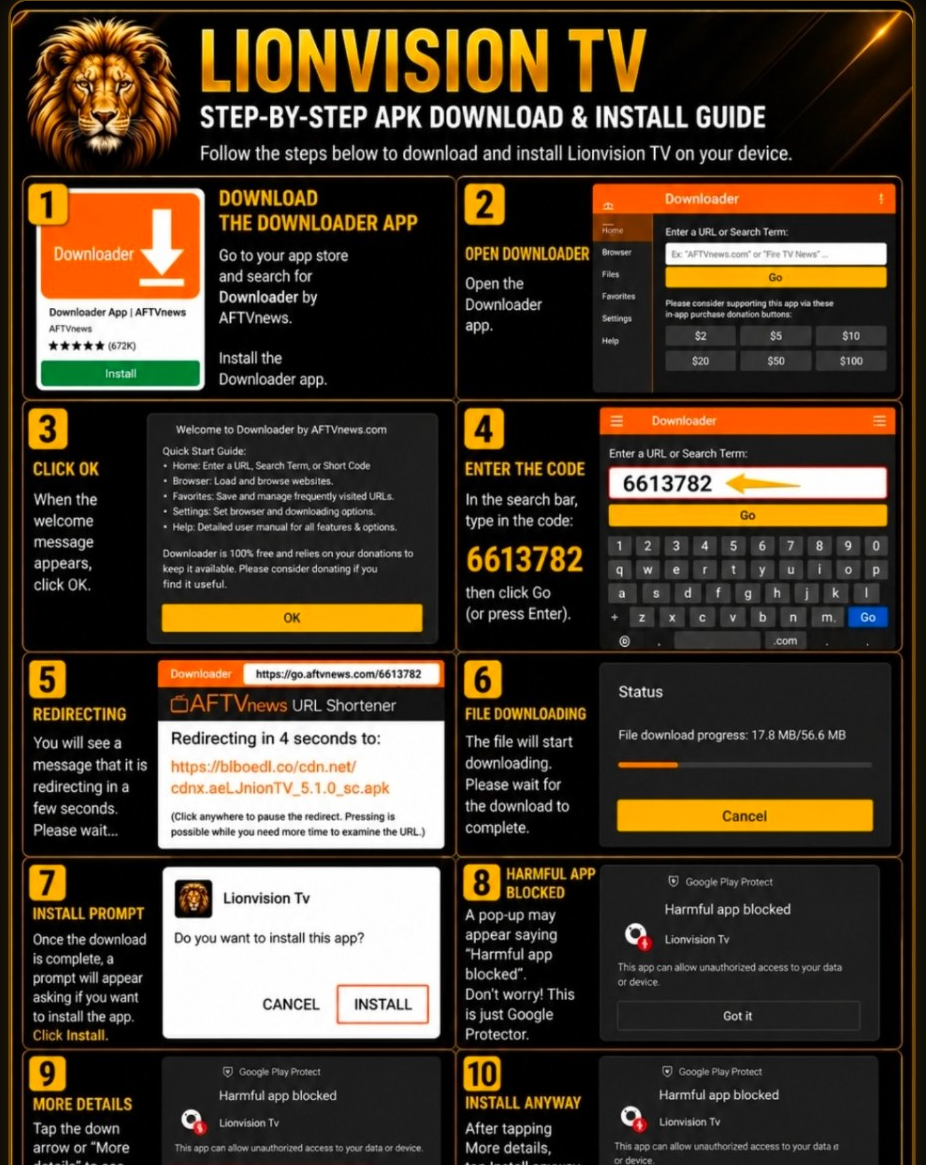
If the Play Protect warning appears, open More details and choose Install anyway for the official LionVision TV download.
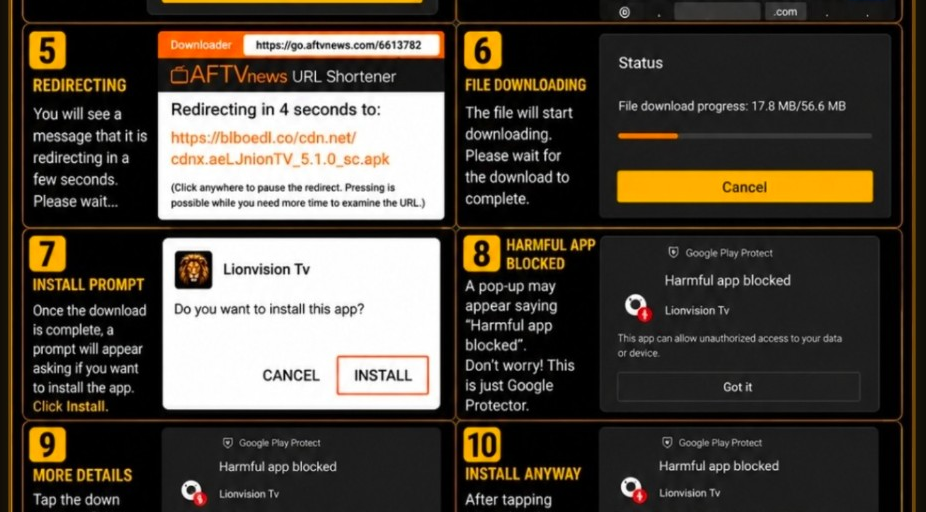
Connect your ONN device to Wi-Fi, then install LionVision TV with Downloader.
Use the LionVision TV Downloader code, then follow the app setup guide after installation.
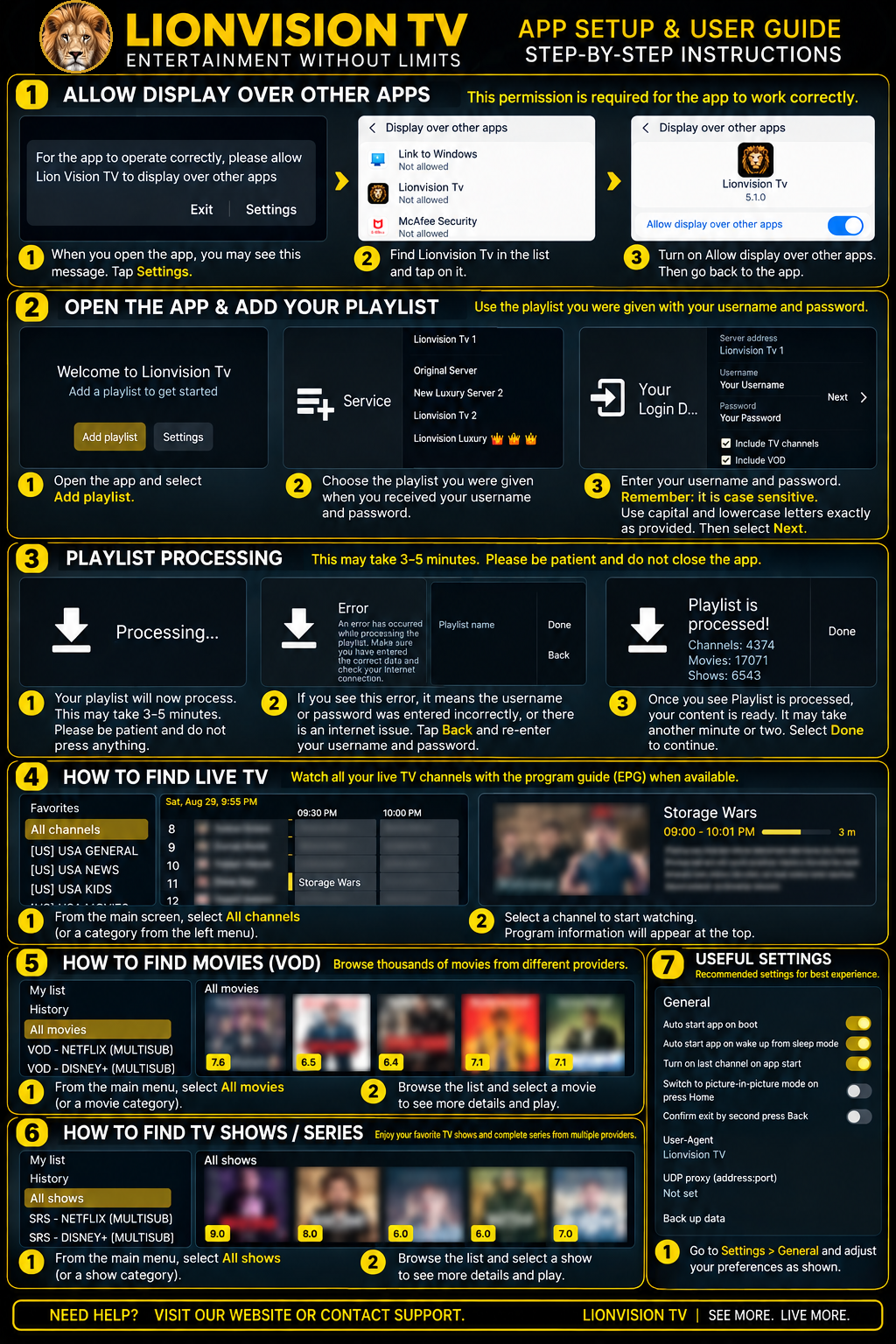

Follow the picture guide and the matching written steps below.
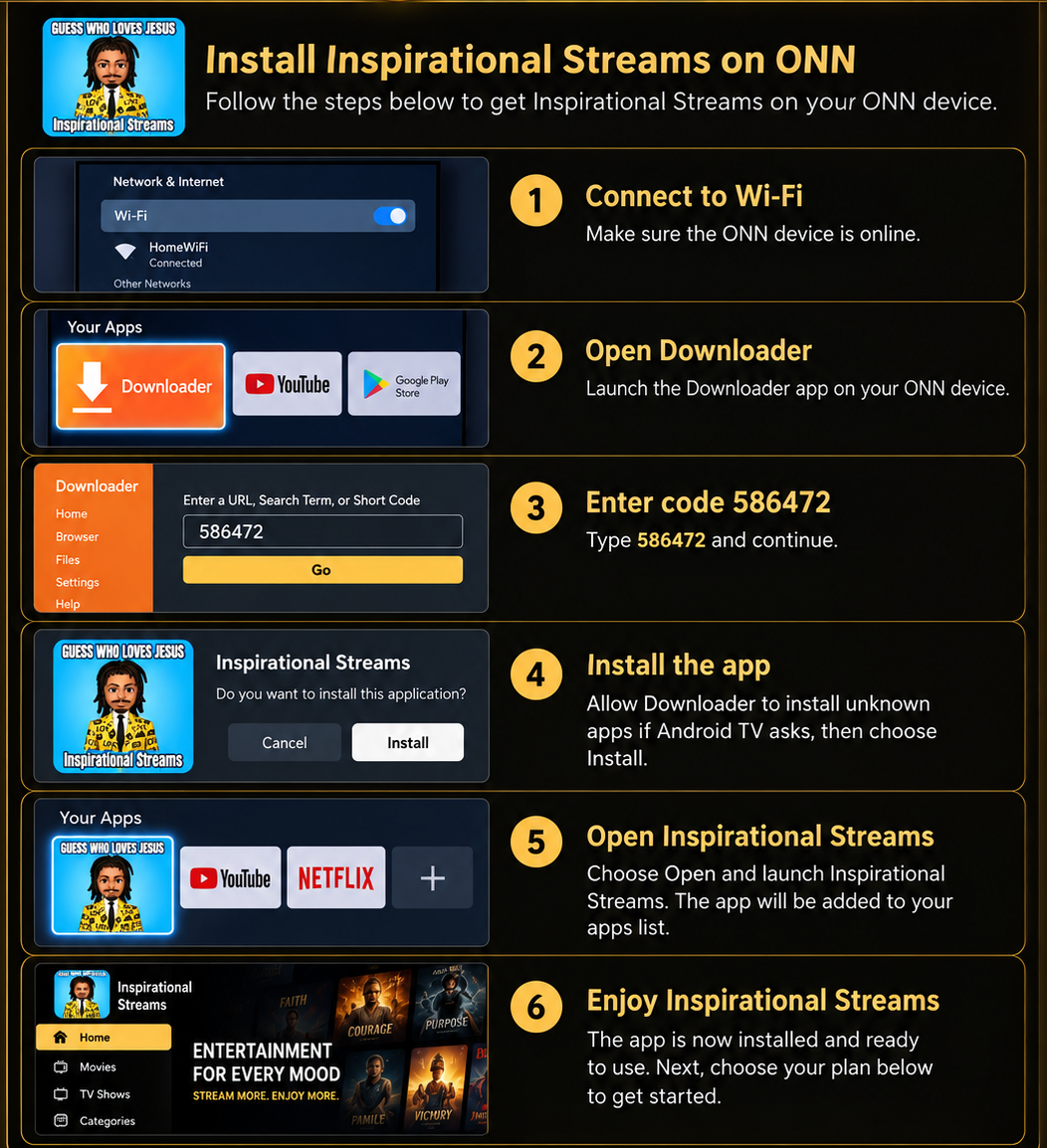
Downloader opens with the Inspirational Streams route already loaded. You do not need to type a code.
✅ AFTER INSTALLATION — LOG IN & GET STARTED
Choose the app you are using. Tap the correct button to open the picture guide and written step-by-step instructions.
LIONVISION TV
Use the picture guide first, then follow the written instructions underneath.
INSPIRATIONAL STREAMS
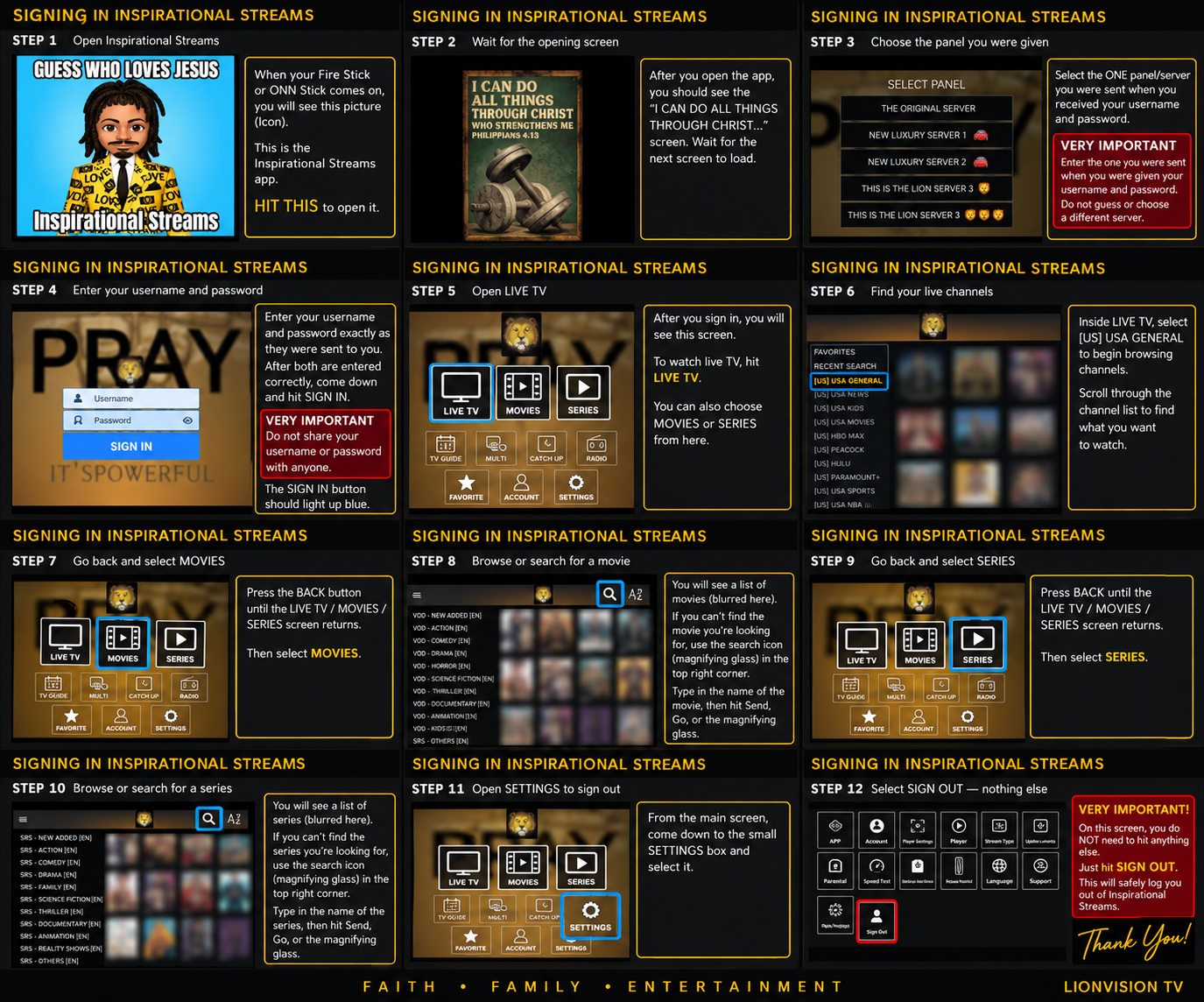
Use the picture guide first. The same 12 steps are written out underneath for anyone who prefers written directions.
♛ PLANS & PACKAGES
Tap the button beside the price for the plan you want.
Tap any price row in the picture to select that plan and open the payment screen.
Two connections included.
Additional connections: $5 each.
Four servers in one. Two connections included.
Additional connections: $5 each.
SUPER SERVER
Watch this short video to see how Super Server can be used on up to four screens.
SETUP HELP: Phone setup assistance is FREE. Regular in-home technician setup is available by appointment for a $20 service charge. When you purchase a new device, in-home setup is FREE within 10 miles.
One-time payment only.
GETTING STARTED
Follow the guide below before installing the service.
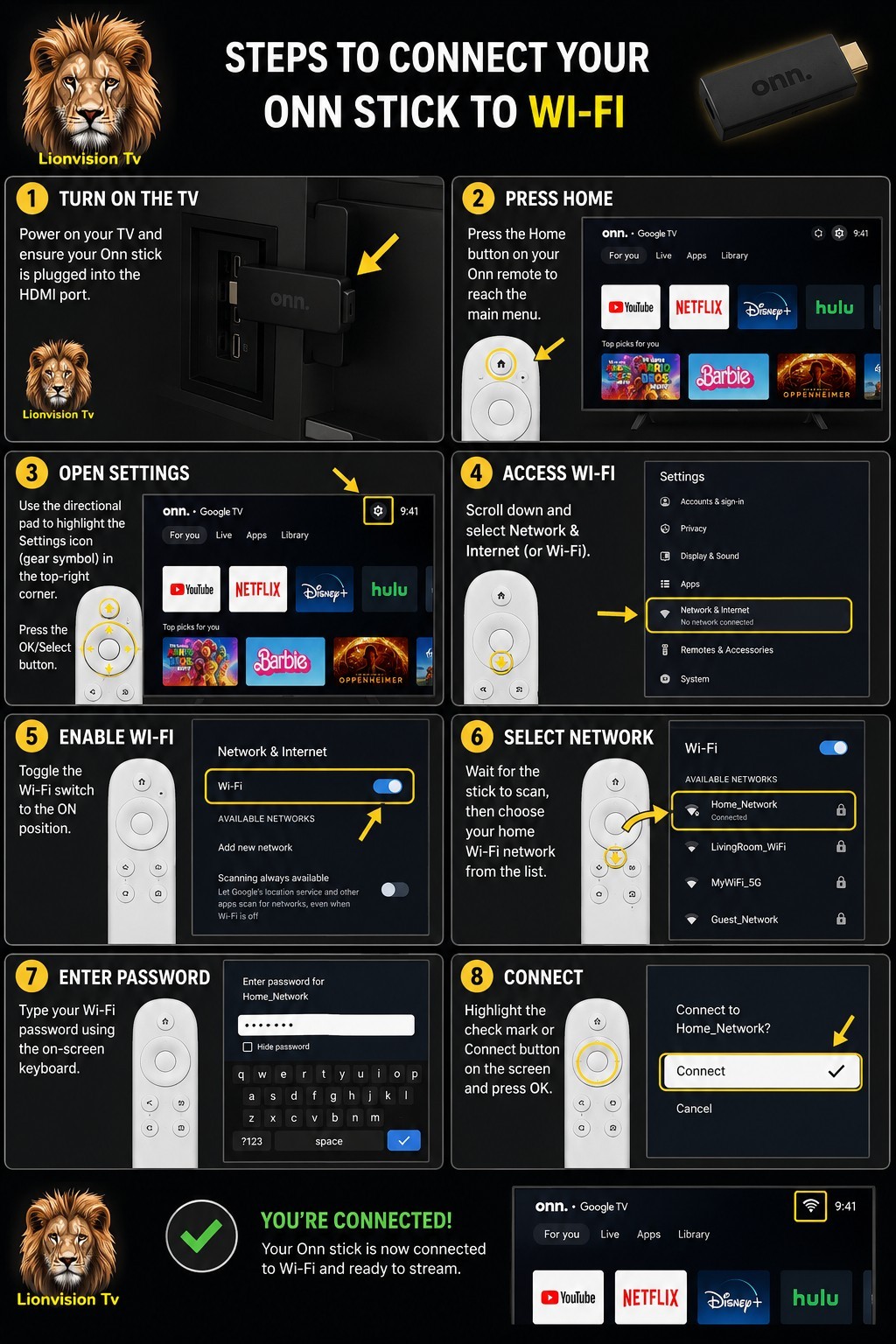
Choose your device below for setup instructions or troubleshooting.
Smart TV and Tablet were removed. These are the available choices.
Tap the green button above, then choose LionVision TV or Inspirational Streams. The selected Android APK download starts immediately.
DEVICE SETUP
Choose your device above. The correct setup picture will open here.
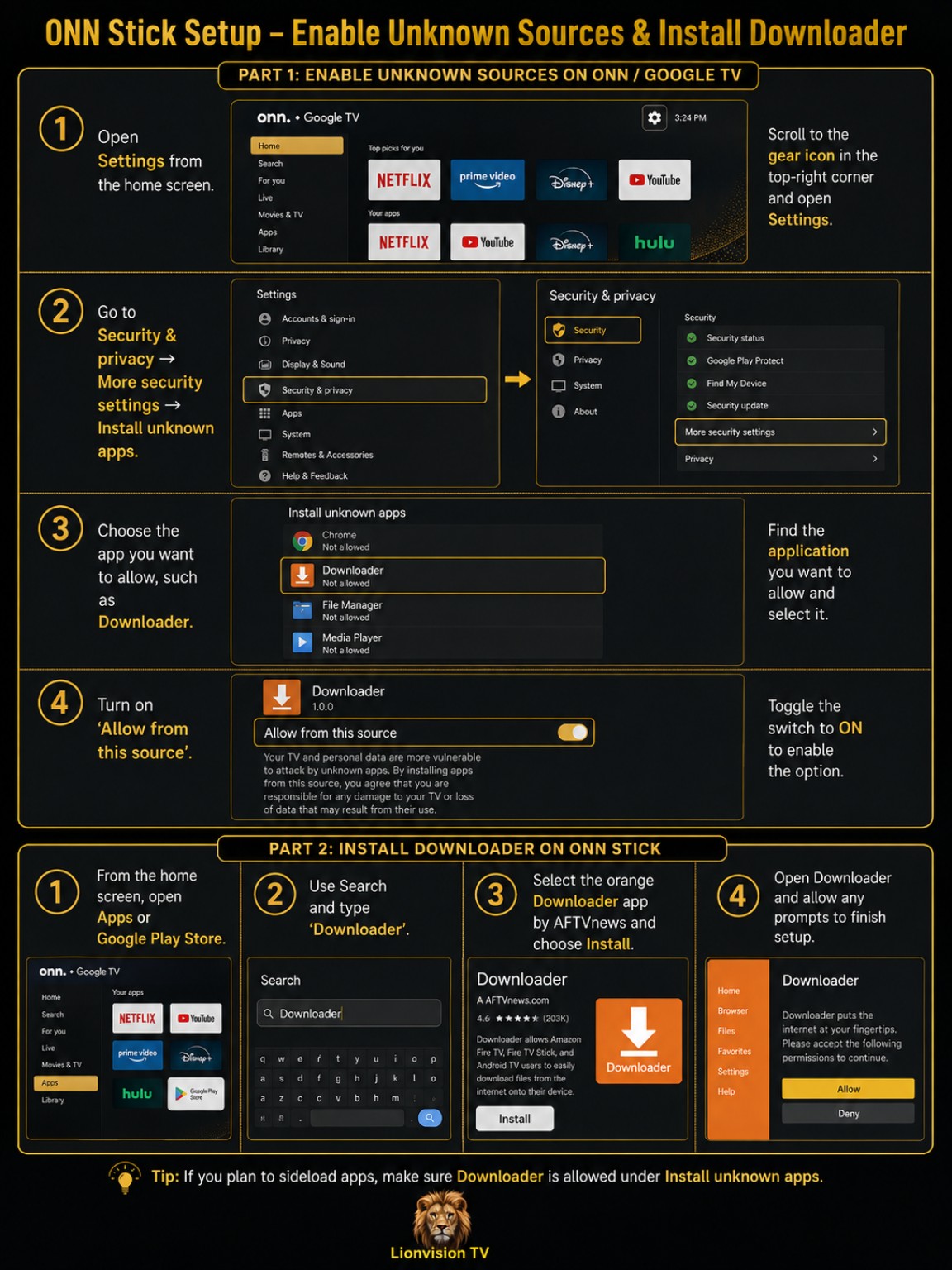
Enable unknown sources and install Downloader on your Onn device.
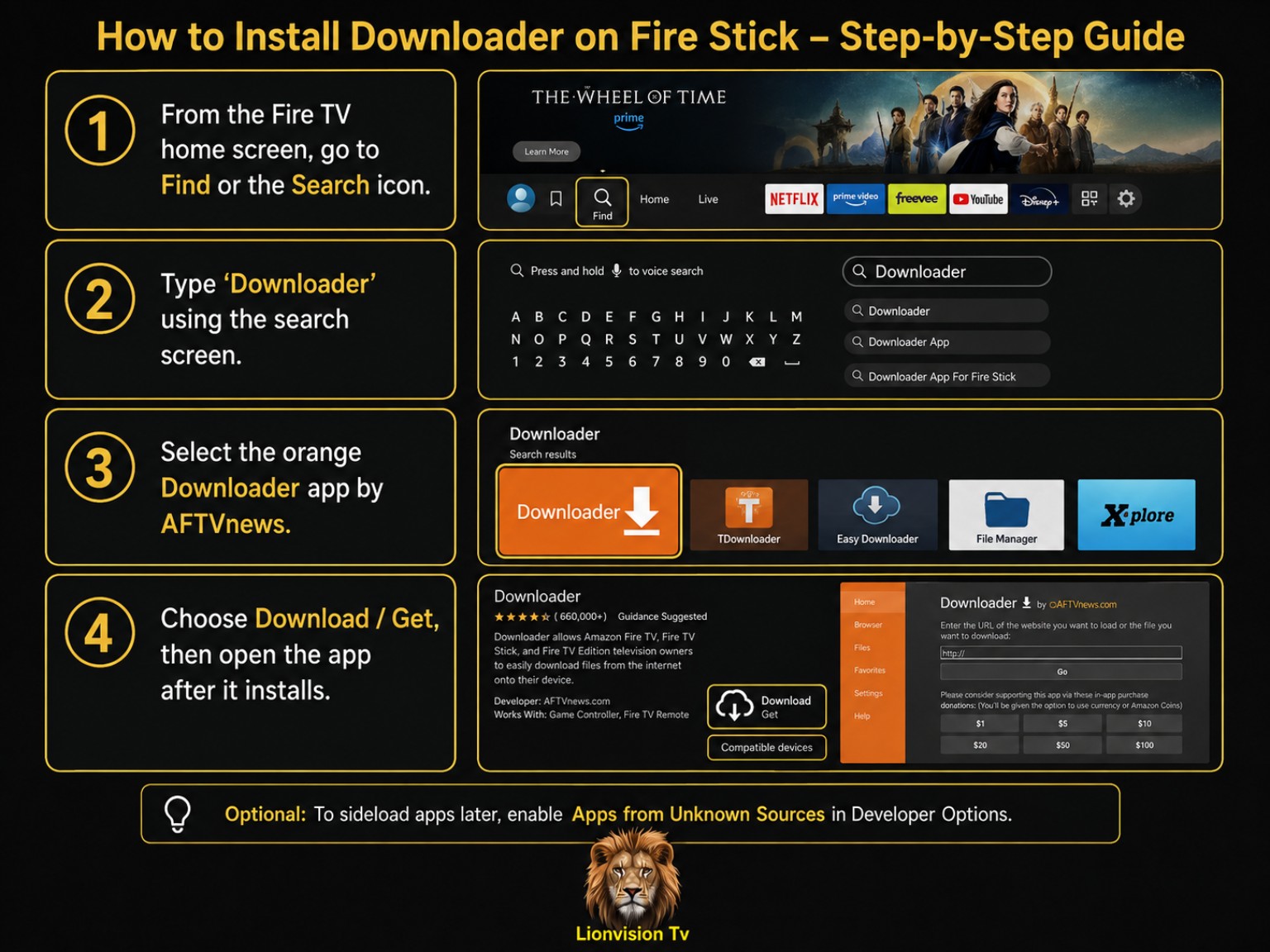
Install the Downloader app on your Fire TV Stick.
Use the picture guide below after you press the green Inspirational Streams download button, then read the same steps in writing.
When Android asks what should open the downloaded APK, choose Package installer on the RIGHT. Then tap INSTALL, and when installation is complete tap OPEN.
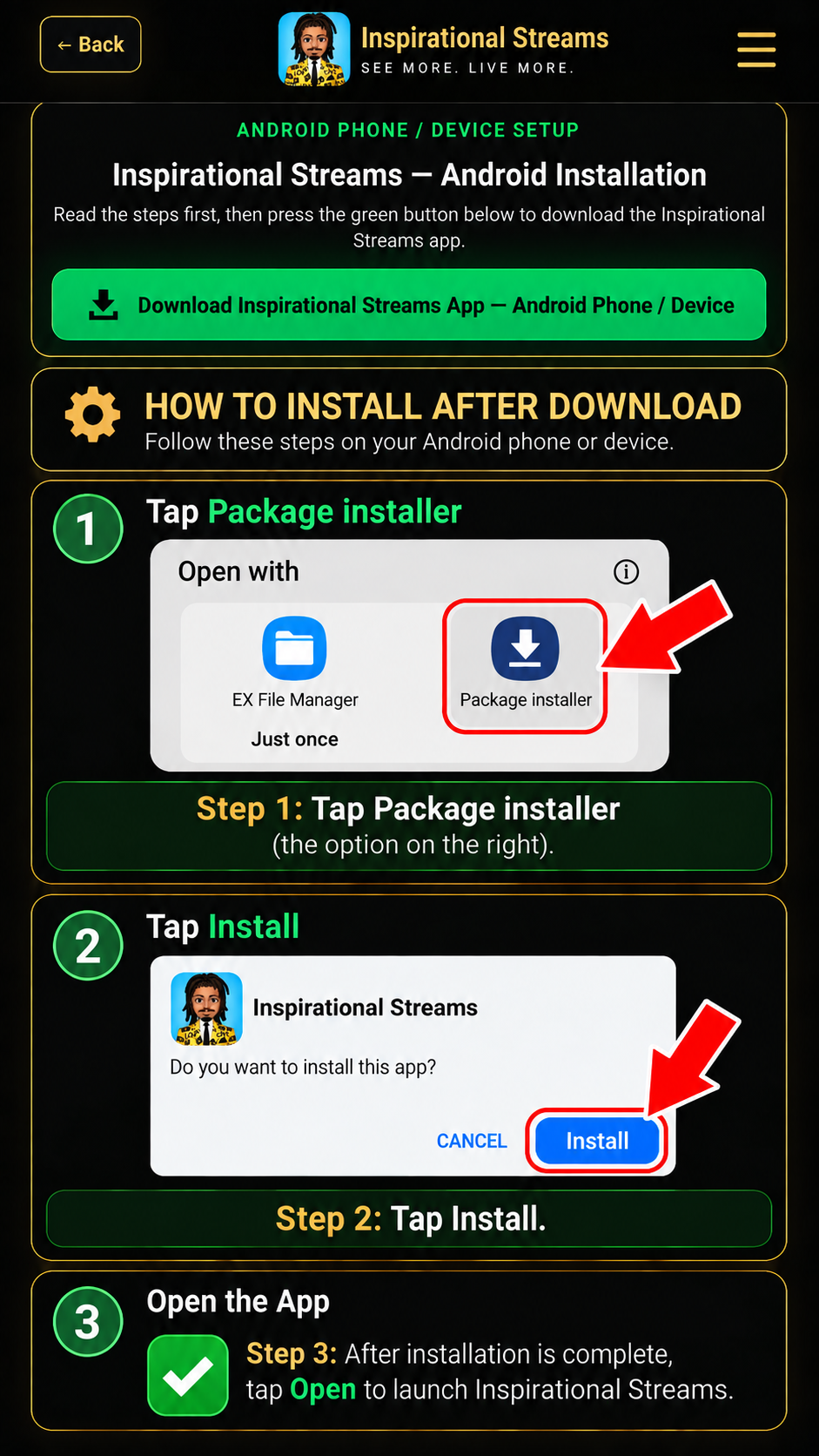
After you press the GREEN Inspirational Streams download button, follow these steps:
✅ YOU’RE ALL SET! Open Inspirational Streams and log in with your LionVision TV username and password.
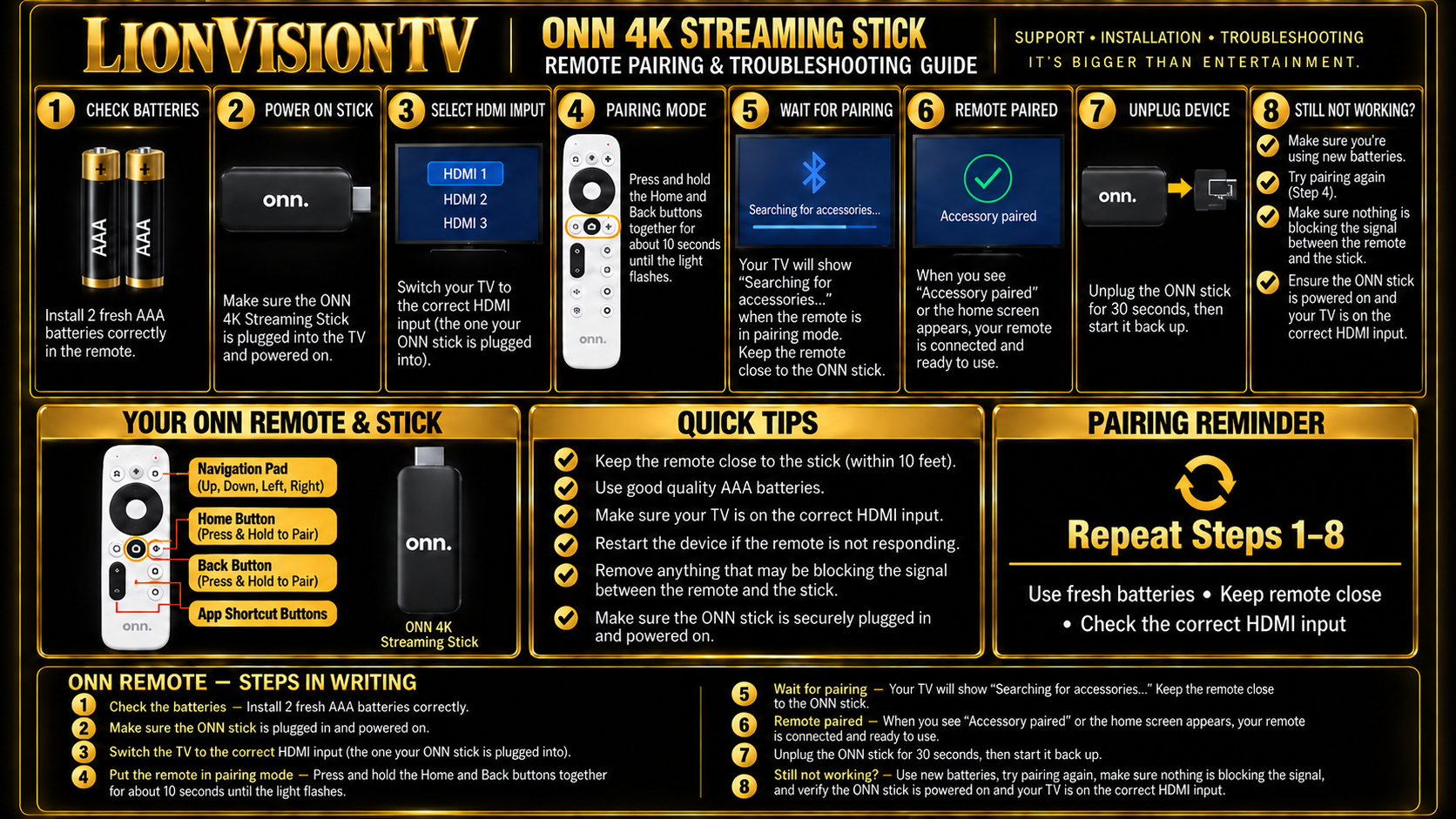
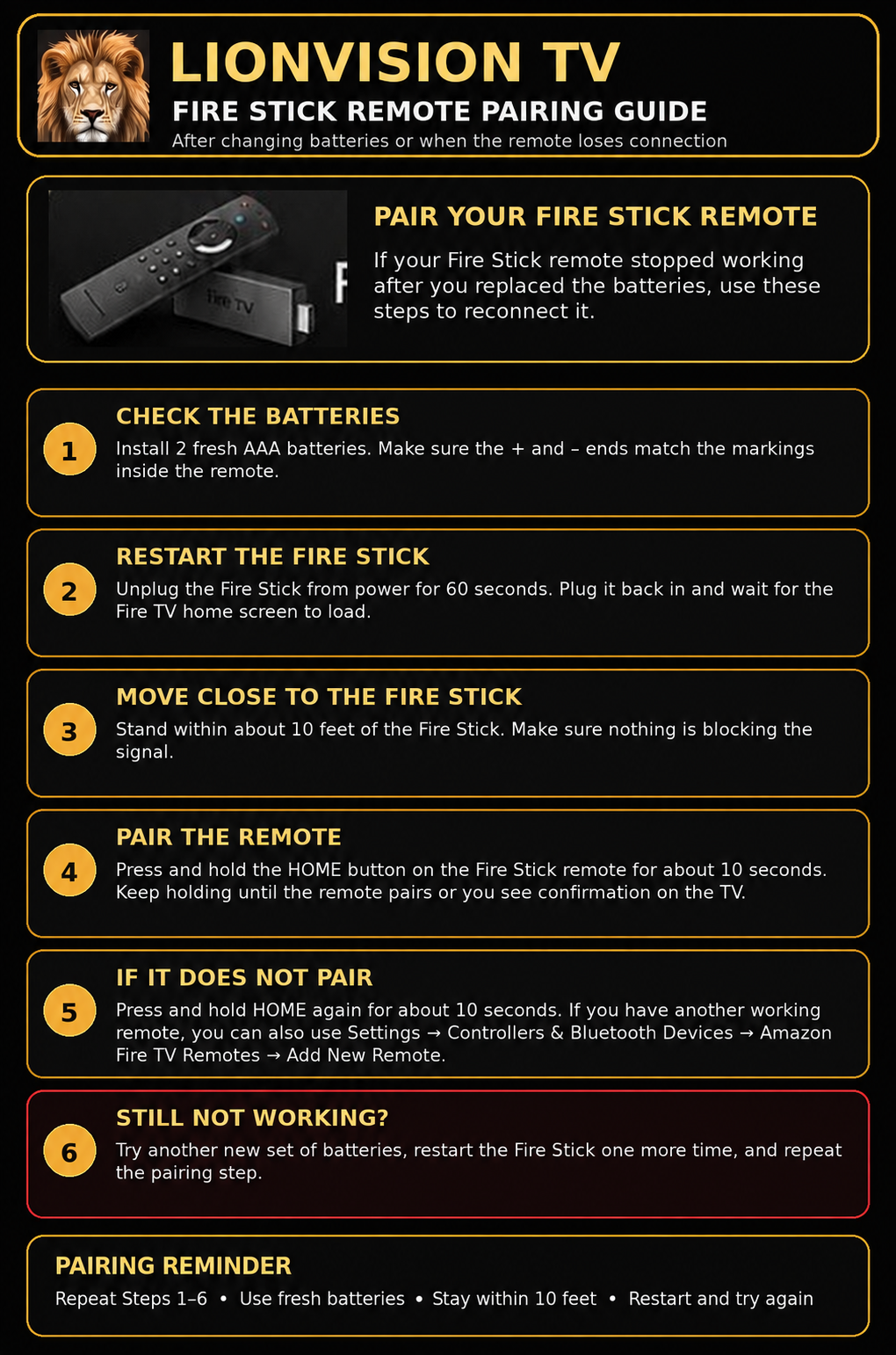
CHANGED THE BATTERIES AND THE REMOTE STILL IS NOT WORKING? Tap your device below and we will show you exactly how to pair the remote back to it.

Did your subscription expire? Did you renew, but Inspirational Streams still will not let you sign in?
Try this quick app refresh first. Watch the video, or use the step-by-step pictures underneath it.
Follow each picture in order. The same steps shown in the video are written underneath.
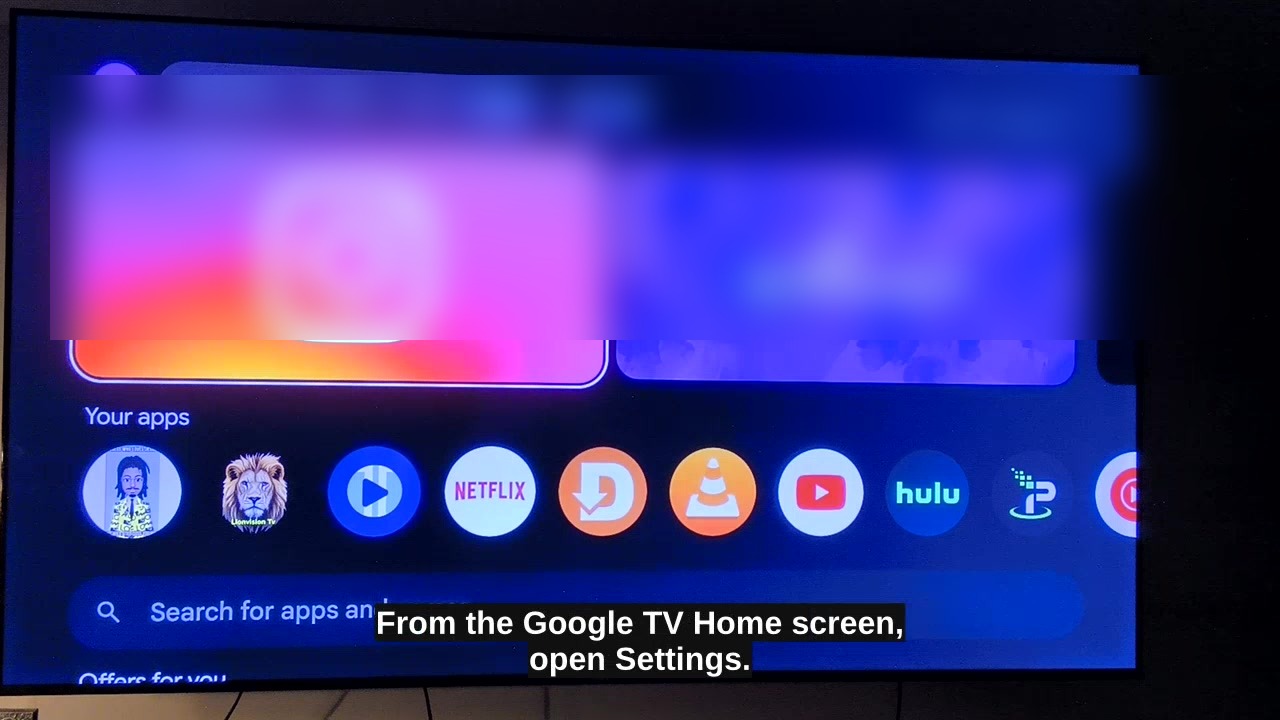
From the Google TV Home screen, open Settings.
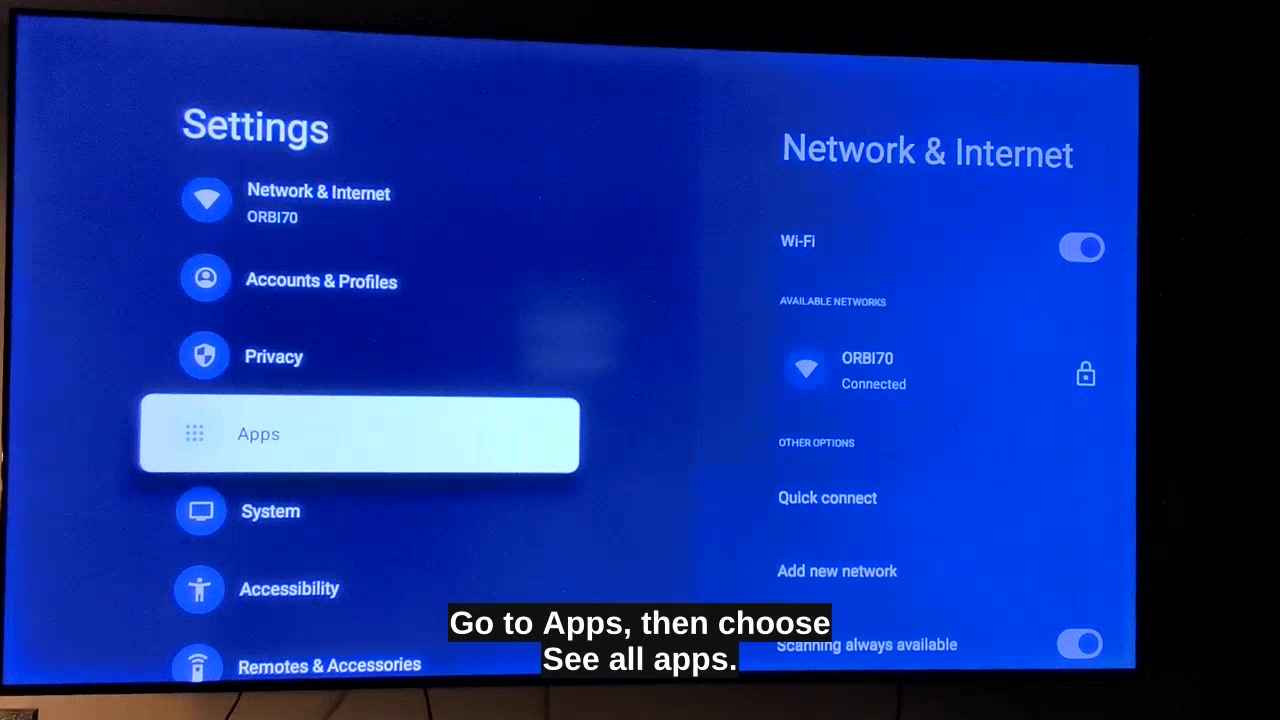
Select Apps, then choose See all apps.
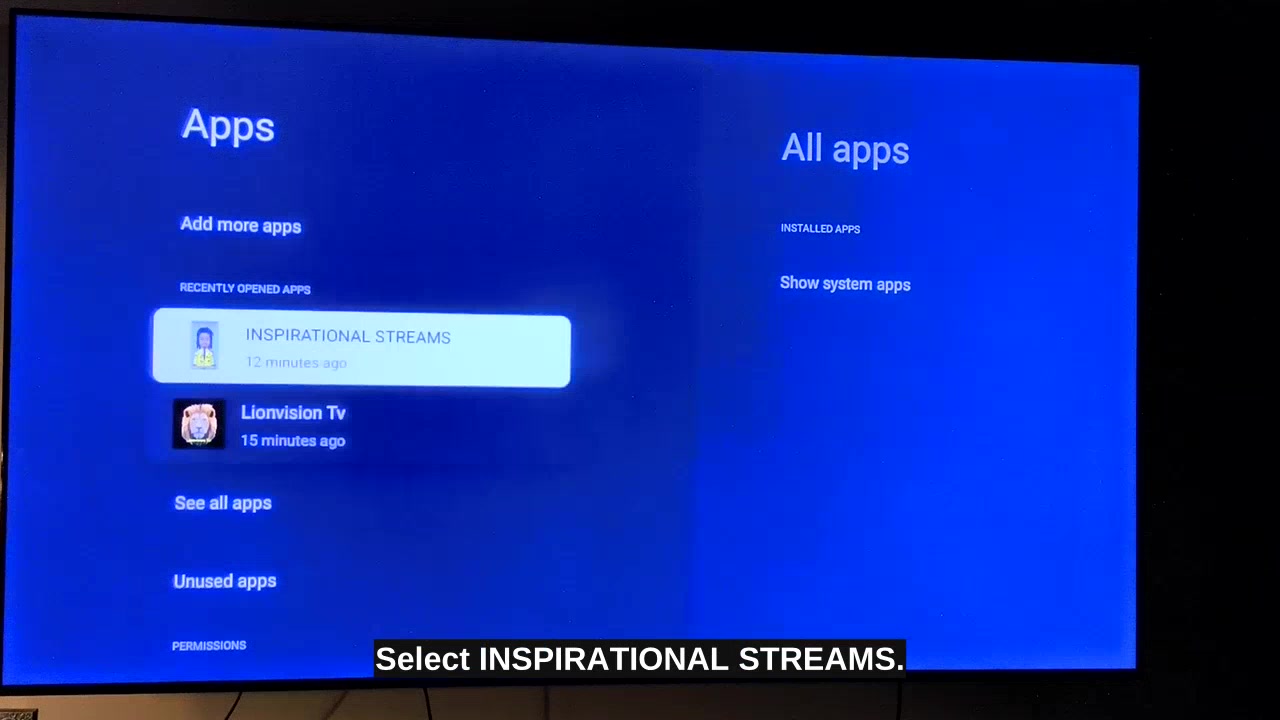
Choose INSPIRATIONAL STREAMS from the app list.
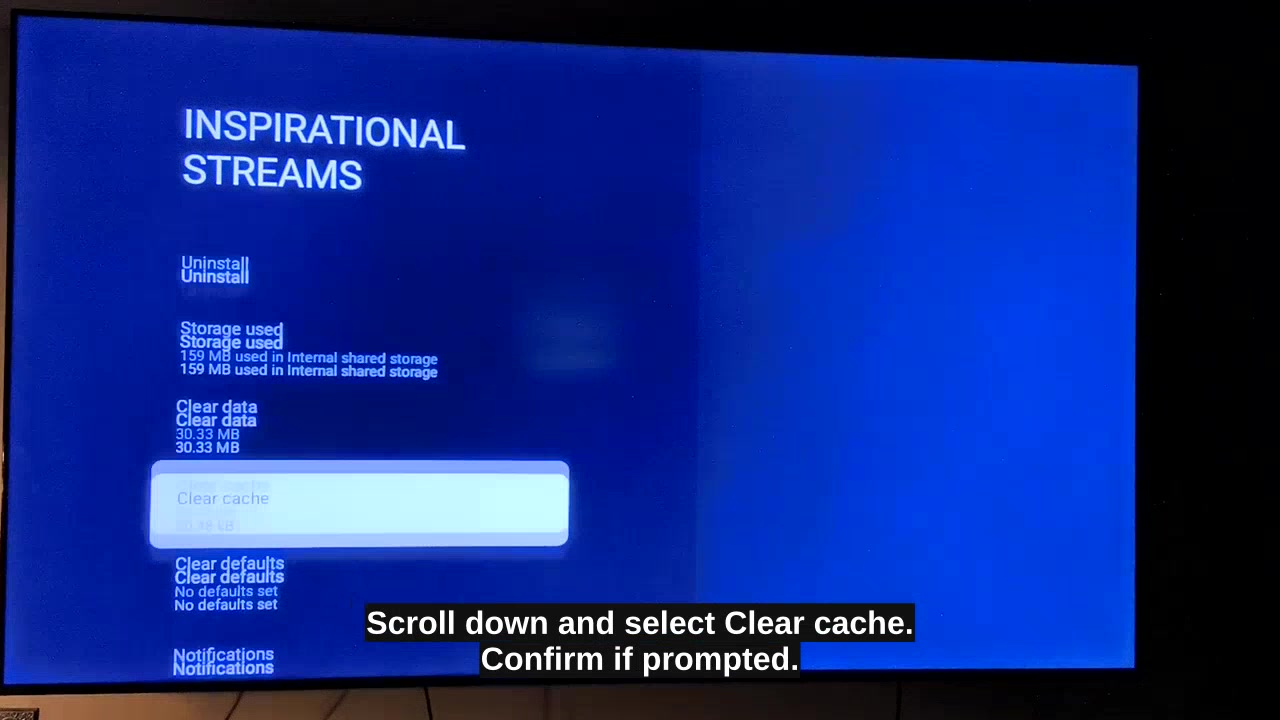
Scroll down and select Clear cache. Confirm if prompted.
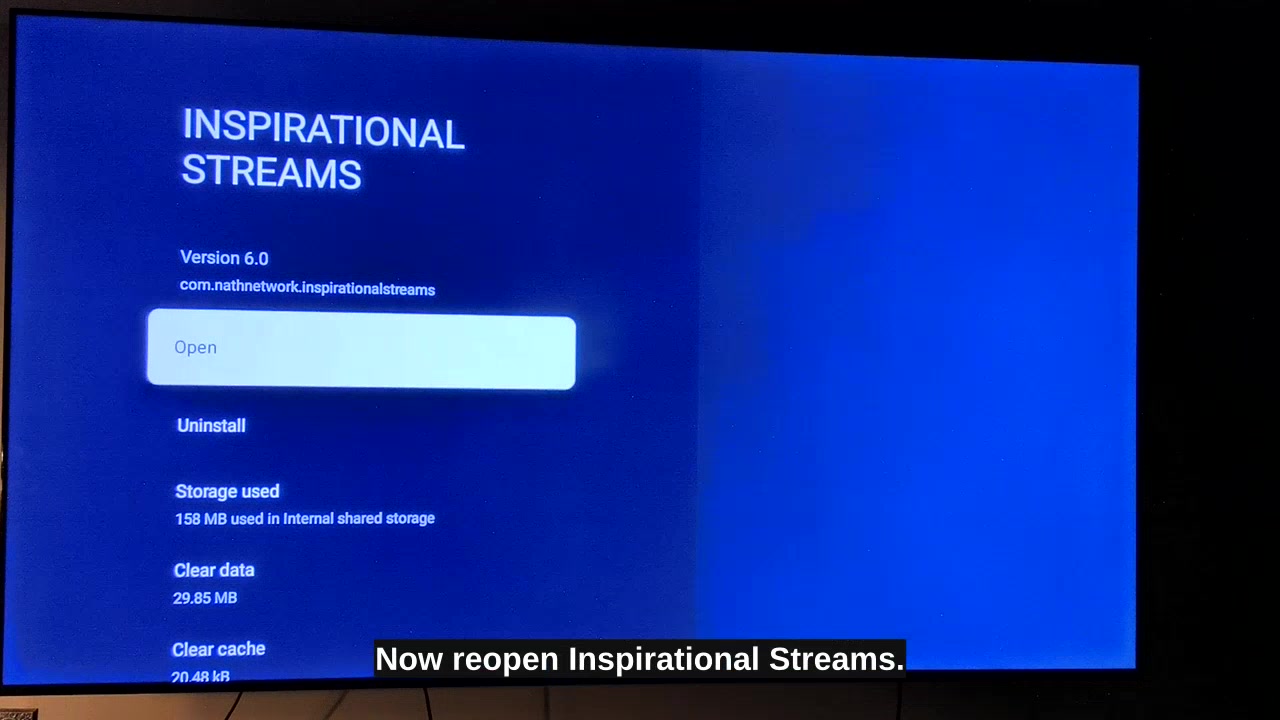
Select Open and give Inspirational Streams a moment to start and load.
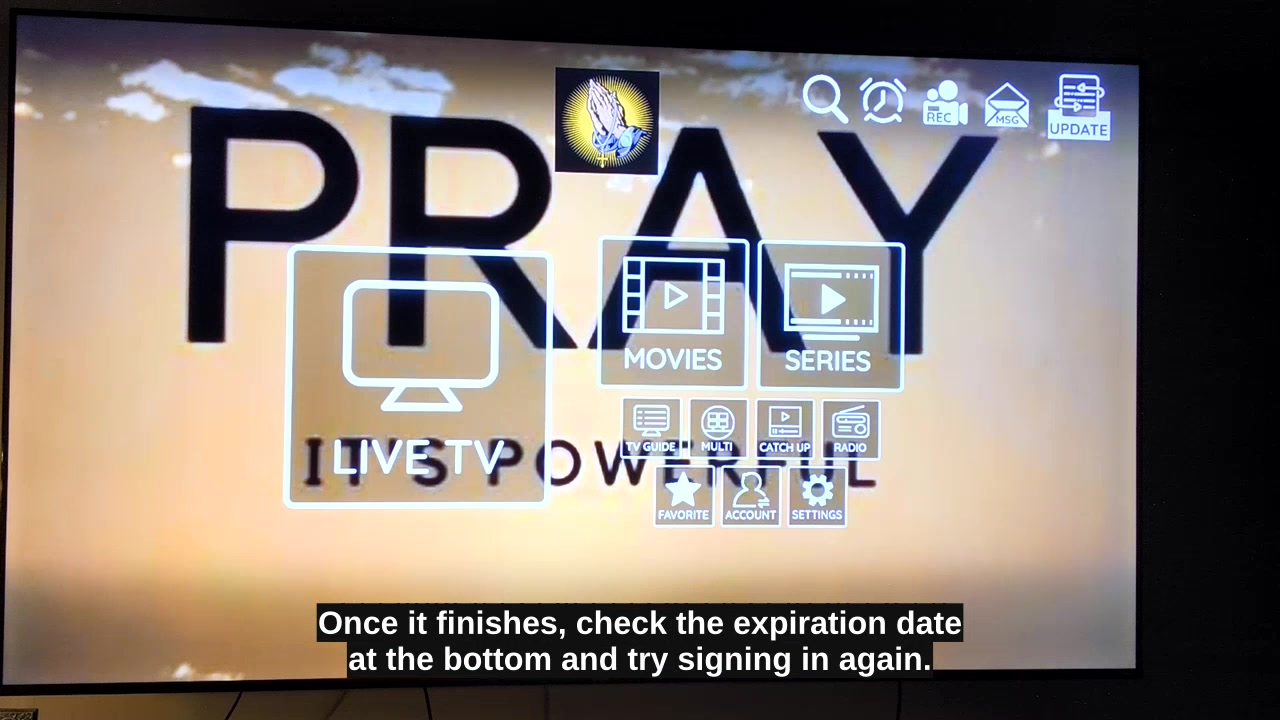
If you see Background Update Process is running, let it finish. Then check the expiration date at the bottom or try signing in again.
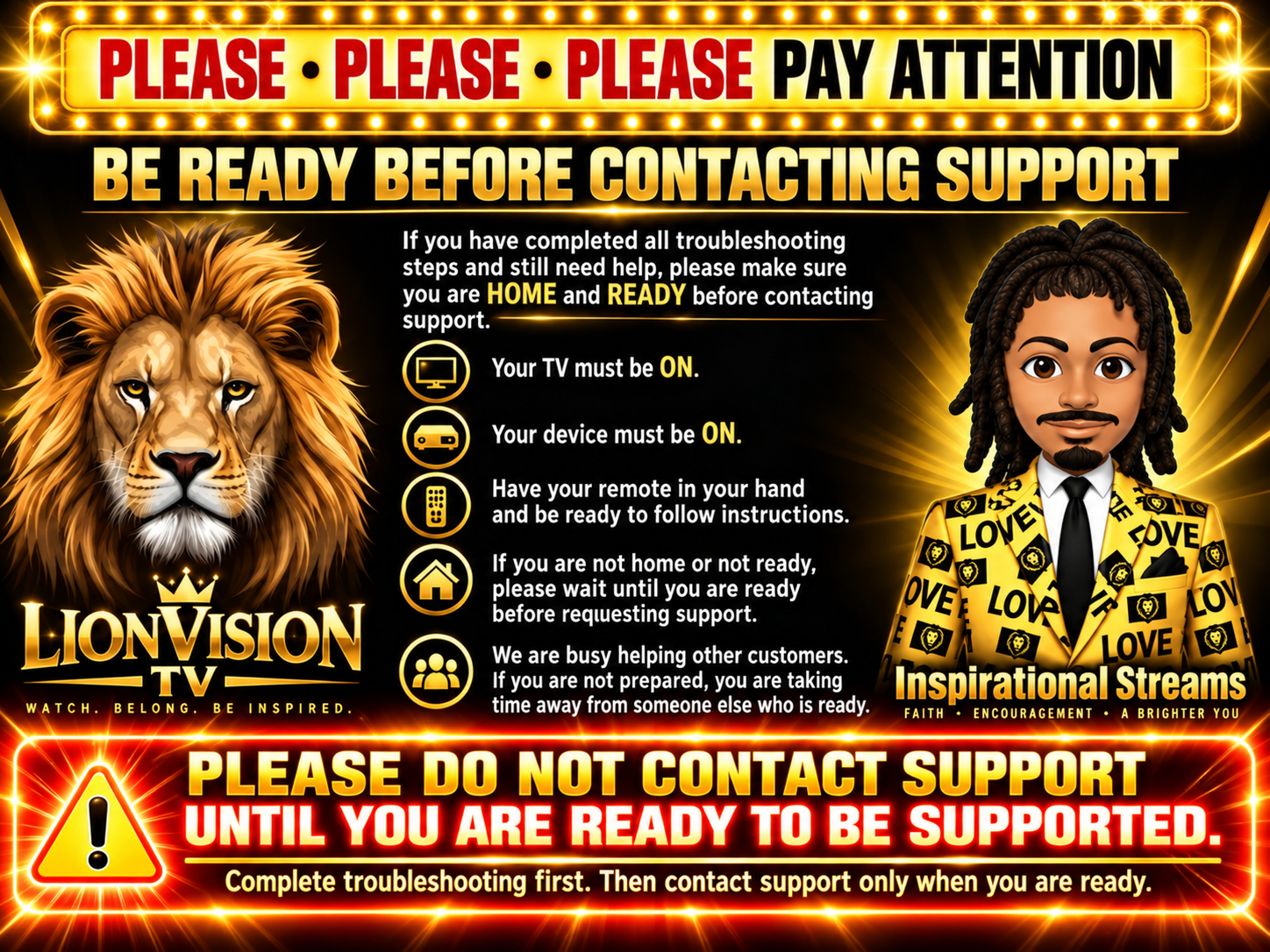
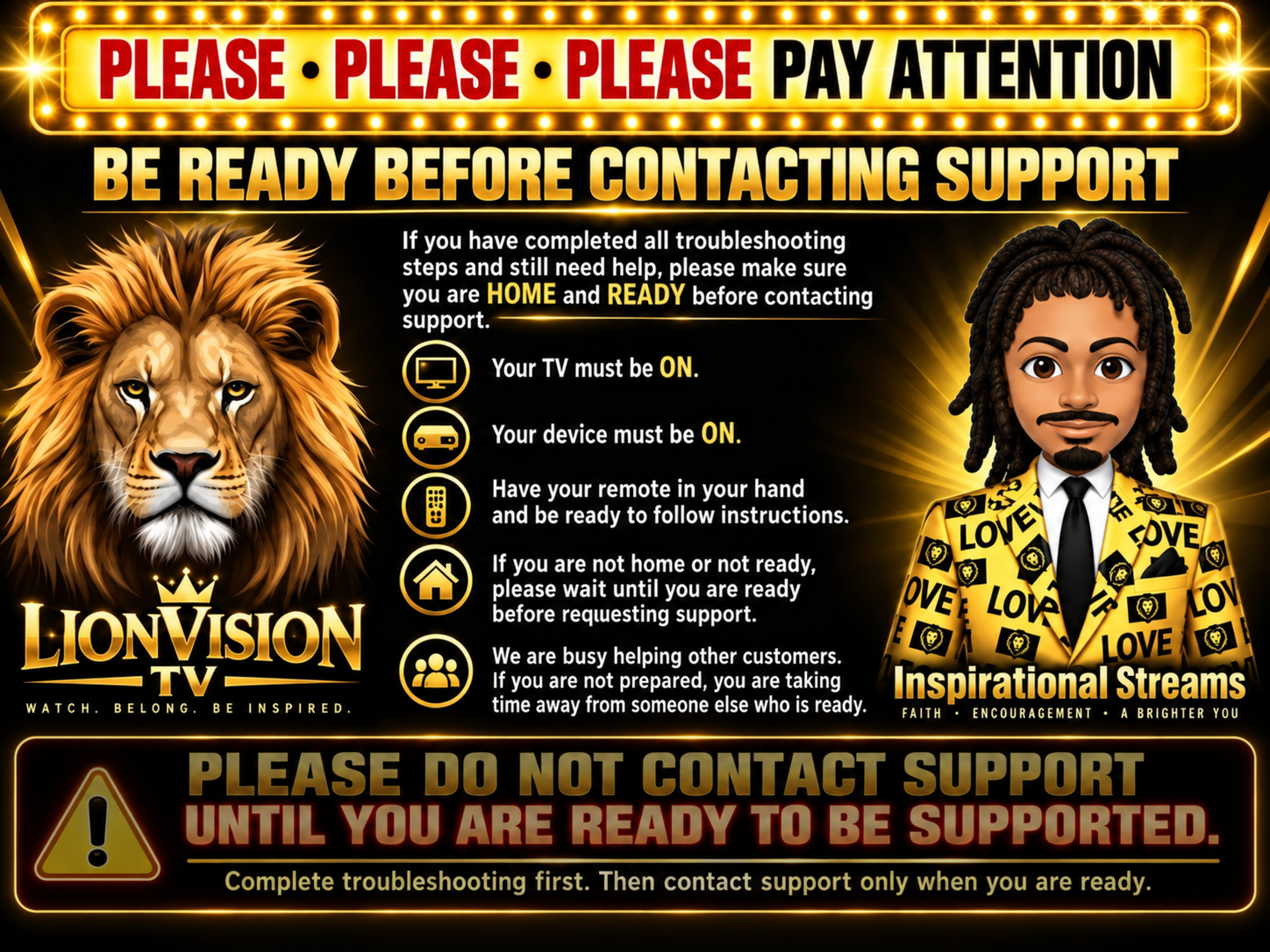
Please do not contact support until you are ready to be supported. A technician may need you to press buttons, open settings, or restart the device while you are texting.
Only continue if the TV and streaming device are on and you are ready to work with support.
You completed the troubleshooting steps and confirmed that you are home and ready. Tap below to open a prepared text message.
Your phone's text app will open. Review the message, then tap Send.
TROUBLESHOOTING
Choose your device first so we can show you the correct troubleshooting instructions.
Choose your device to open only the instructions for that device.
You have two apps on your device. Select the app you need to troubleshoot.
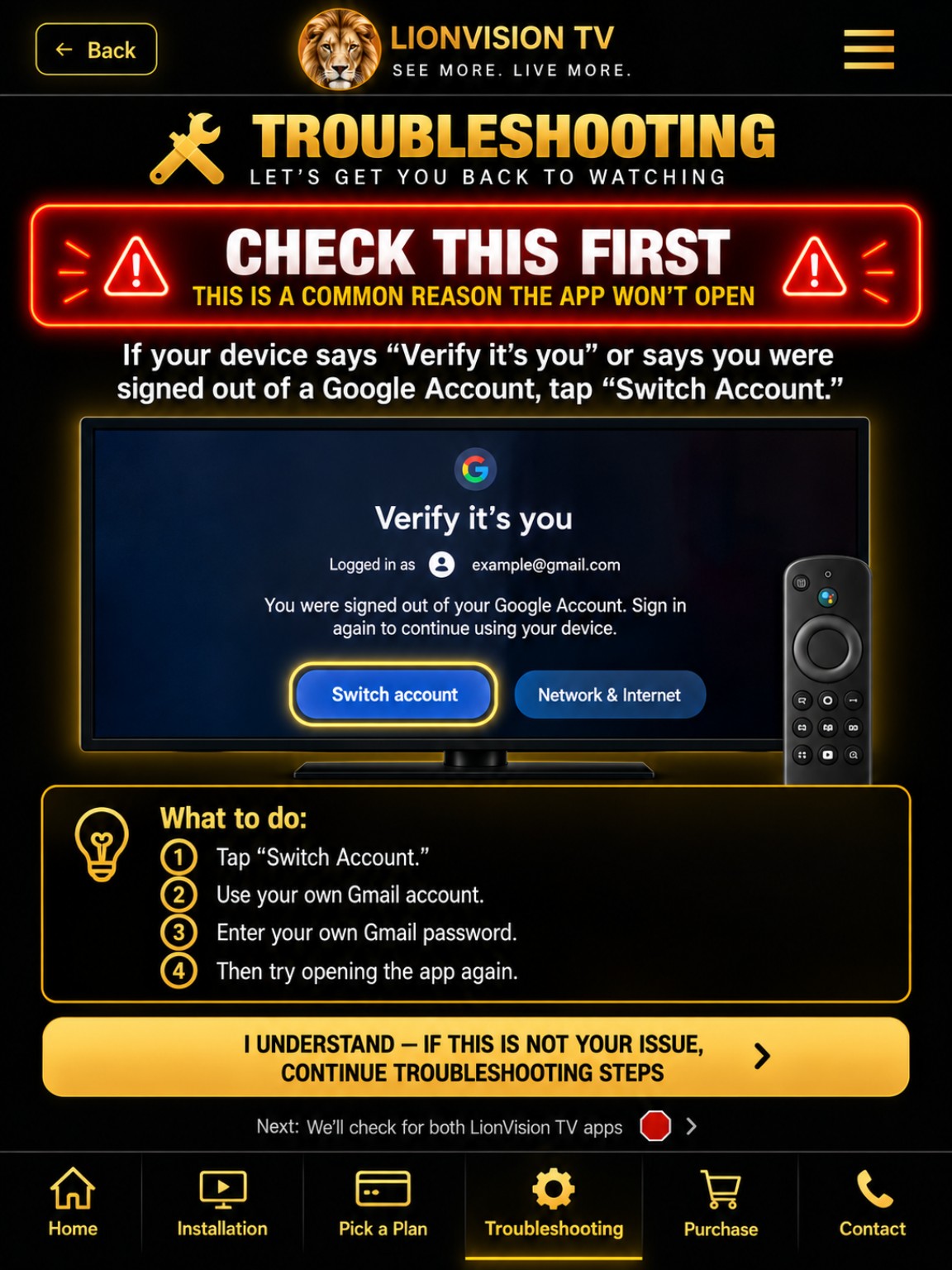
Use this only after the previous troubleshooting steps. Open Inspirational Streams → Settings → Log Out → choose another server that says Lion Vision → log back in with your username and password.
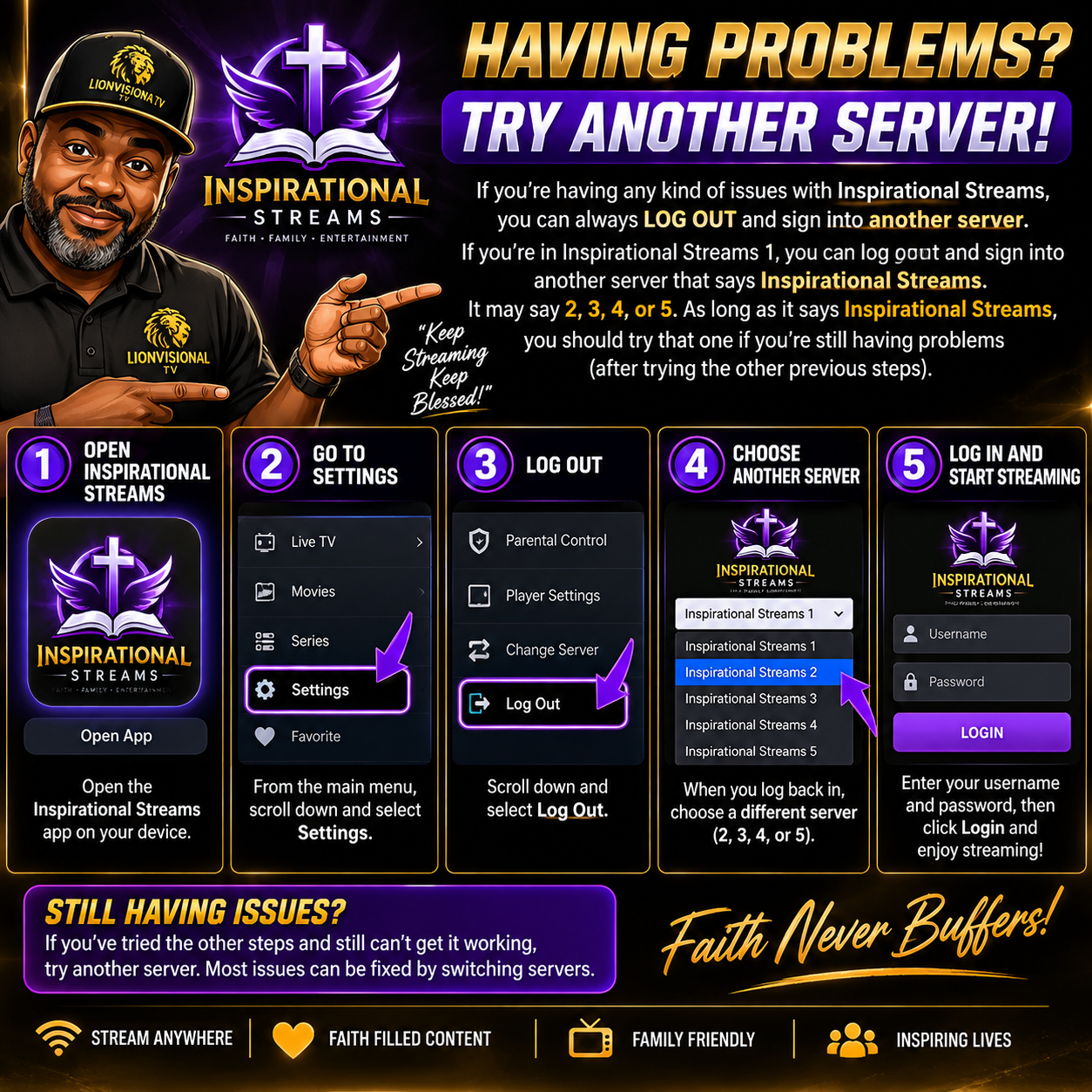 Inspirational StreamsYou selected the Inspirational Streams app
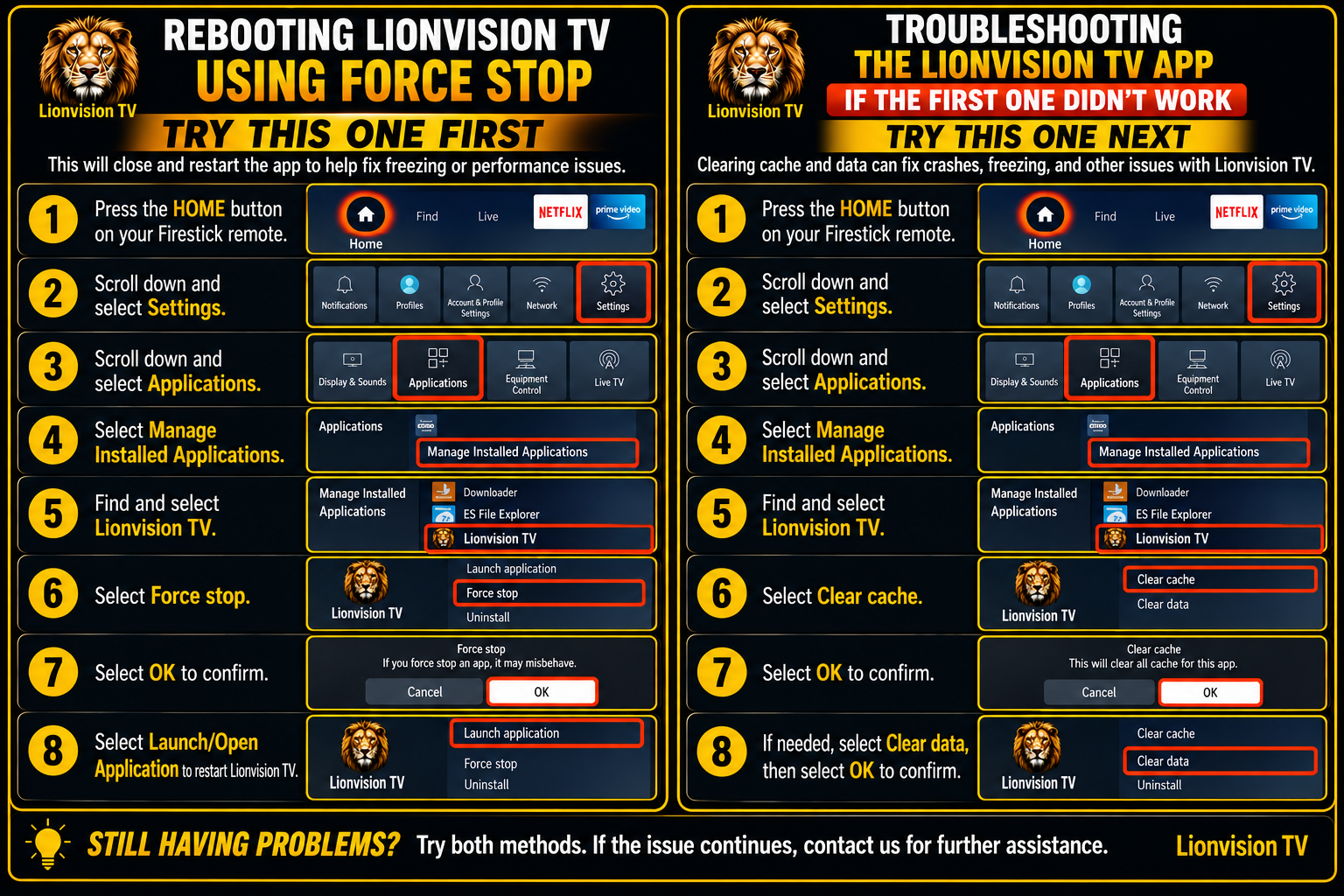 Inspirational StreamsYou selected the Inspirational Streams app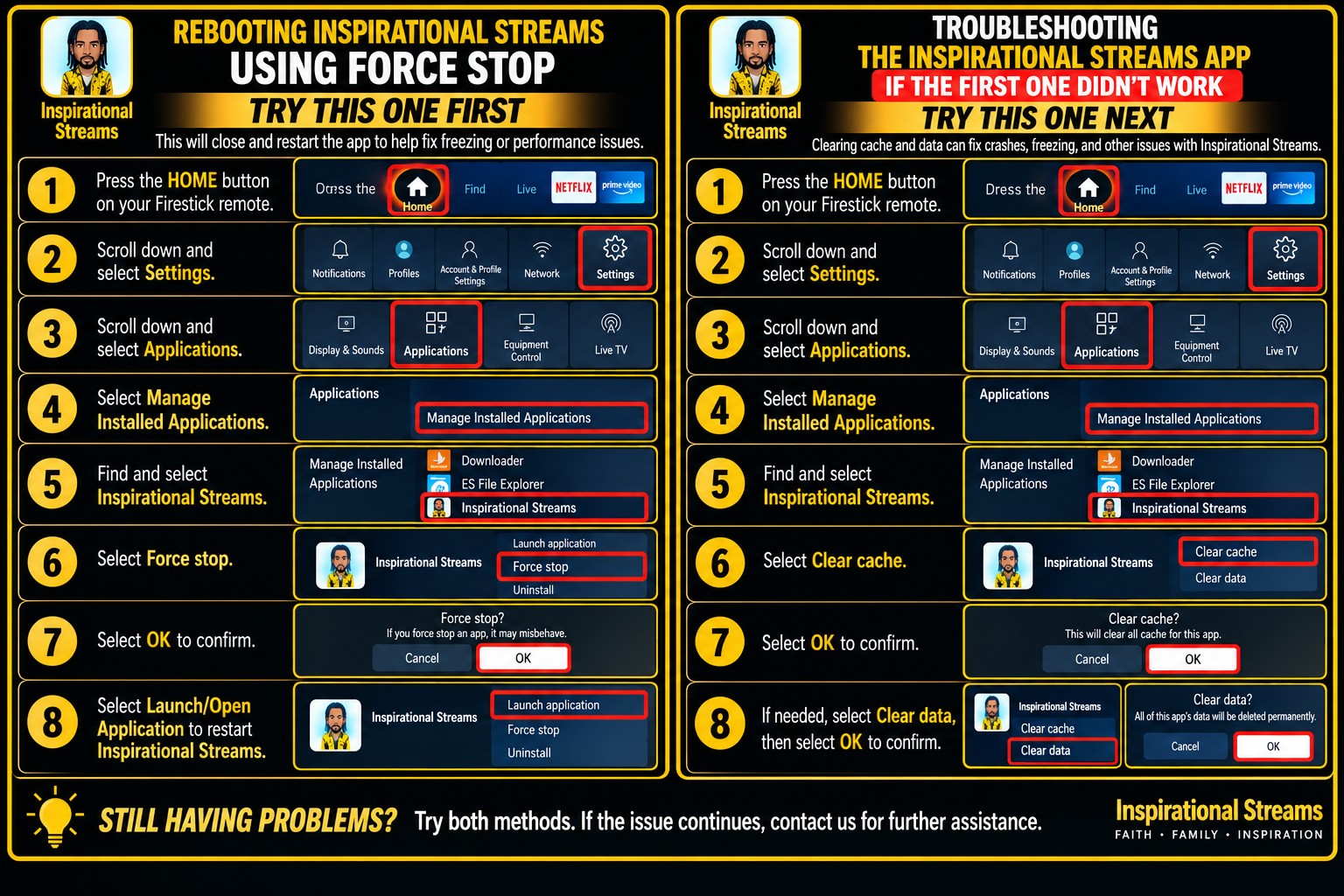
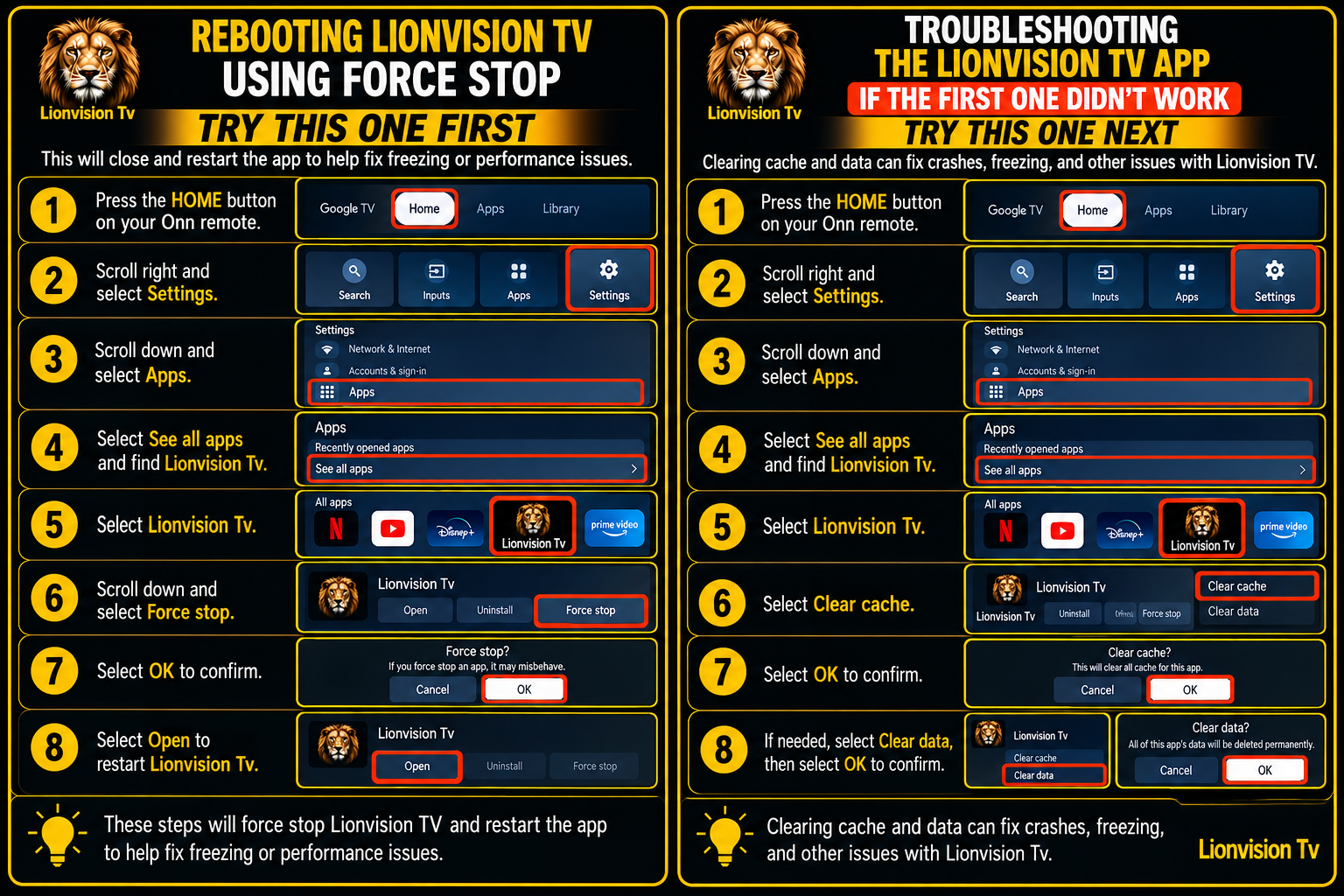 Inspirational StreamsYou selected the Inspirational Streams app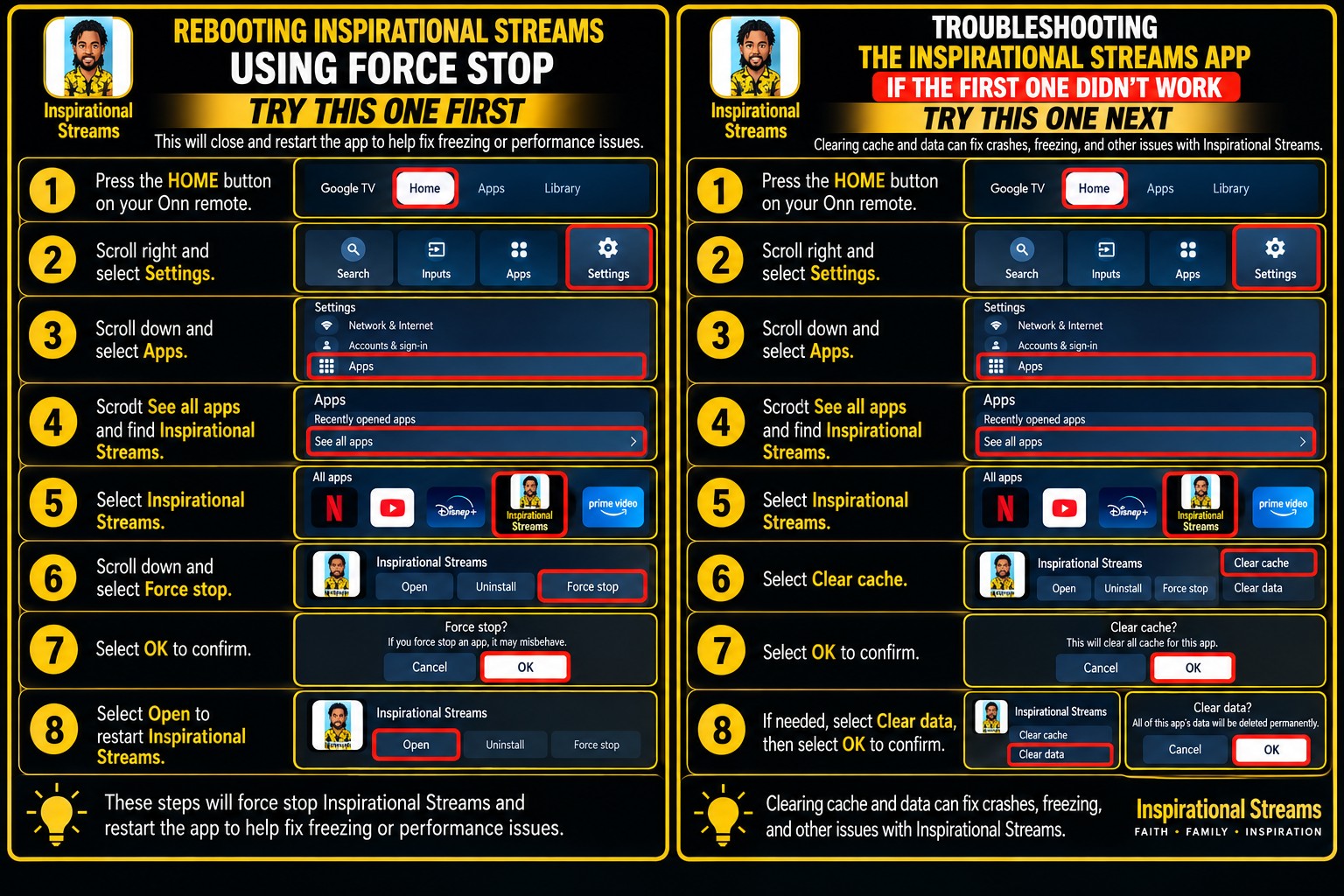
Before trying anything else, verify that your internet connection is working properly. Open another app or website and make sure your Fire Stick or device is connected to Wi-Fi.
If one app is not working, go to the other app and try it. You have two apps on your device for a reason, so always try the second app before assuming the service is down.
SIGN OUT / SIGN BACK IN: Something as simple as signing out of your account and signing back in may fix the problem.
UPDATE: Use the Update option inside the app if one is available.
Try these simple steps before contacting support: check your internet, try your other app, sign out and back in, and try the app's Update option.
Unplug your streaming device from power for about 1 minute. Plug it back in, let it restart completely, then try the selected app again.
Use the Force Stop / Clear Cache steps shown above. Avoid Clear Data unless you know your login information.
If you can't reach us because we're helping other customers, please text or email us and we'll respond quickly. When texting, include your username. New customers should include their name and phone number.
PROFESSIONAL HELP AT YOUR LOCATION
We will only come to your house if you need a technician to troubleshoot or fix your device after you have already tried all of the troubleshooting steps yourself.
All in-home technician services are done by appointment only. Contact us to schedule a time that works for you.
There is a $20 service charge for a regular in-home technician visit. This fee covers the technician's time and travel.
When you purchase a new device, in-home technician setup is free within 10 miles. A separate delivery charge may apply if doorstep delivery is selected.
Troubleshooting over the phone with a technician is always free of charge.
You may cancel your appointment at no charge if you do so at least 2 hours before your scheduled appointment time.
If you miss your scheduled appointment due to your error, you still owe the $20 service charge fee, even if you are not available when the technician arrives.
TEXT US TO REQUEST AN IN-HOME TROUBLESHOOTING TECHNICIAN
? FAQ
Onn Box / Stick, Fire TV Stick, and Android Phone are listed as choices.
New customers provide their full name and phone number.
Existing customers provide their Lionvision username and phone number. After payment, send the username and a screenshot showing successful payment.
Tap “Request an Invoice.” A prepared text message opens to LionVision TV with your order details so an invoice can be sent to you.
Yes. Tap the other-payment option and ask what is available.
NEED HELP?
Reach out for setup, payment, and account assistance.